Home › Installing
Your download has started
Didn’t start? Download it here.
How to open GLanSync on your Mac
The first time you open it, macOS says “GLanSync” Not Opened and that Apple could not verify it is free of malware. Your download is fine. macOS says this about every app that has not been through Apple’s paid notarization yet. It takes four steps, and you only do it once.
macOS 15 and newer (Sequoia, Tahoe)
First open the downloaded .dmg and drag GLanSync into your Applications folder.
Then:
-
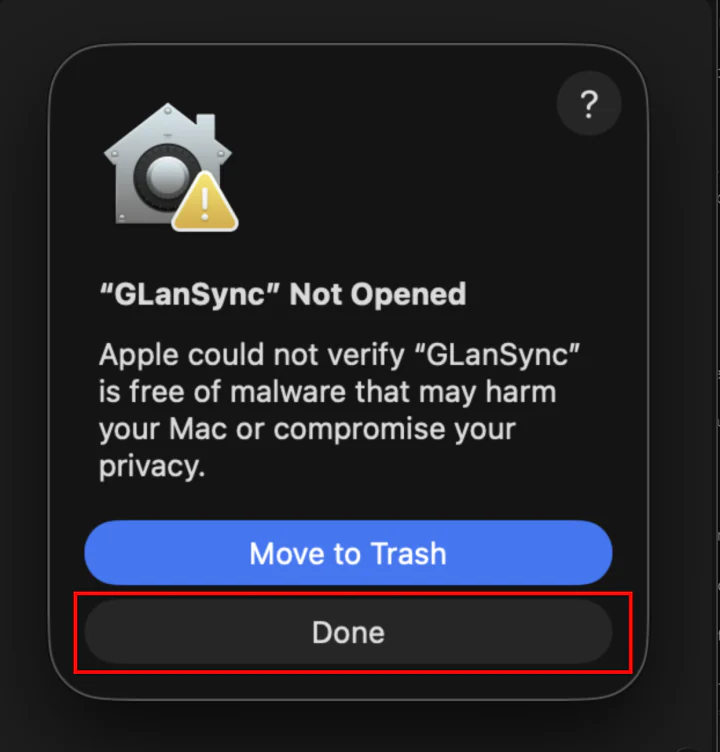
Open GLanSync from Applications. When macOS says “GLanSync” Not Opened, click Done (not Move to Trash).
-
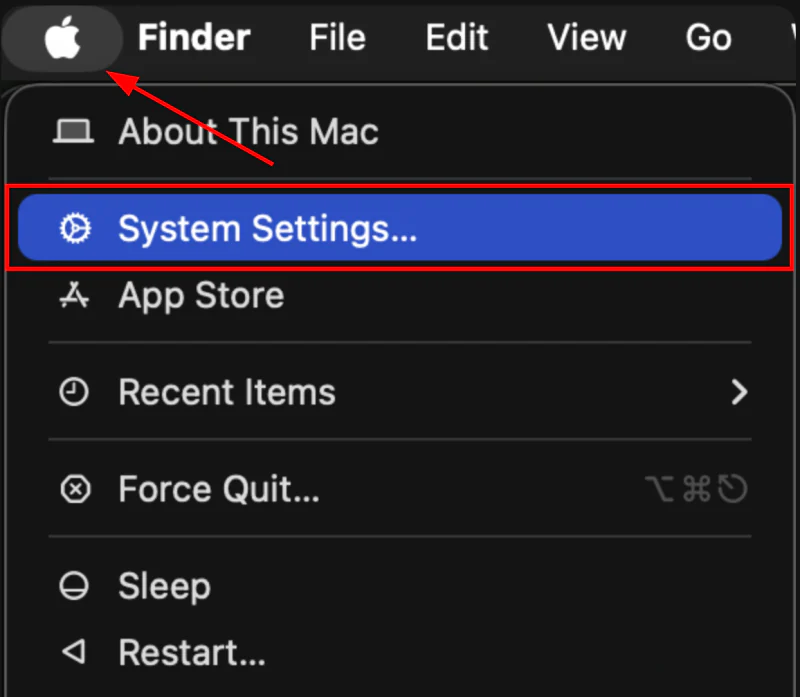
Click the Apple menu in the top-left corner of your screen and choose System Settings.
-
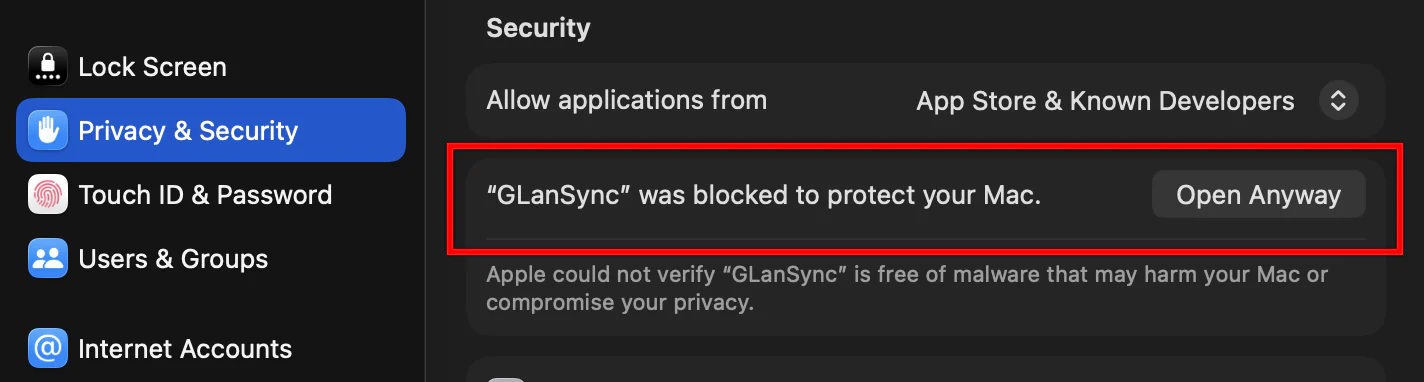
Click Privacy & Security and scroll down to Security. Next to “GLanSync” was blocked to protect your Mac, click Open Anyway, then enter your password or use Touch ID.
-
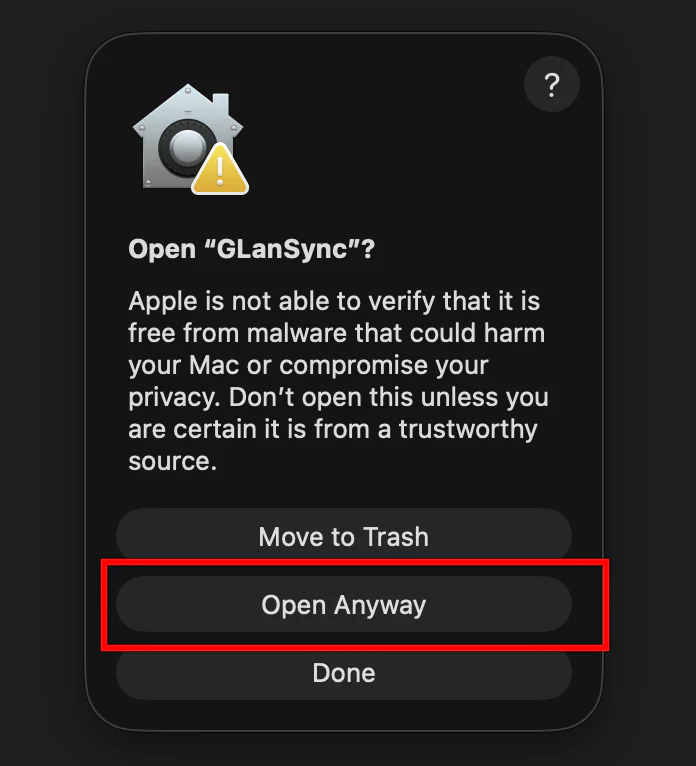
macOS asks one last time. Click Open Anyway. GLanSync opens, and from now on it opens like any other app.
Can’t find Open Anyway? It only appears after you have tried to open the app, and it disappears after about an hour. Open GLanSync again, then go straight back to Privacy & Security. If an update ever shows the warning again, repeat these steps.
macOS 13 or 14 (Ventura, Sonoma)
In Applications, right-click (or Control-click) GLanSync and choose Open, then click Open in the dialog. You only do this once.
It says “GLanSync is damaged and can’t be opened”
That can happen with the .zip download. Download the .dmg instead and follow the
steps above, or remove the download flag from this one app in Terminal:
xattr -dr com.apple.quarantine /Applications/GLanSync.appWindows: “Windows protected your PC”
- If your browser says the file isn’t commonly downloaded, keep it. In Edge, click the three dots next to the download, then Keep, then Keep anyway.
- Run the installer. When the blue SmartScreen window appears, click More info. It’s the small text under the message.
- Click Run anyway.
Your antivirus may also flag a brand-new unsigned installer, only because it hasn’t seen it before. The SHA-256 on the releases page lets you confirm you have the real file.
Why this happens
An app opens without a warning when it has been notarized: its developer pays Apple $99 a year and Apple scans every build. GLanSync is free during launch and made by one person, so builds are signed but not notarized yet. macOS shows the same warning for every app it hasn’t scanned. It does not mean Apple found a problem.
Notarization is planned. Until then, only download GLanSync from glansync.com or its GitHub releases page, and compare the SHA-256 published with each release if you want to be certain the file is the one that was built.
Which file do I need?
| Your computer | File | Note |
|---|---|---|
| Mac with Apple Silicon (M1 or newer) | GLanSync-mac-arm64.dmg |
Most Macs since 2020 |
| Mac with an Intel processor | GLanSync-mac-x64.dmg |
Native Intel build |
| Windows 10 or 11 | GLanSync-Setup-x64.exe |
Almost every PC |
| Windows on ARM (Snapdragon, Surface Pro X) | GLanSync-Setup-arm64.exe |
ARM PCs only. It won’t start on a regular PC. |
Not sure which Mac you have? Open the Apple menu, then About This Mac. If it says Chip: Apple M1 or newer, take Apple Silicon. If it says Processor: Intel, take Intel.
After it opens
macOS asks for Local Network access on first launch. Allow it: that is how GLanSync finds your lights, and it can’t work without it. Screen Recording is asked for the first time you start screen sync, and GLanSync needs a restart after you allow it. The microphone is only requested if you use microphone-driven music sync.
Lights not showing up? Turn on LAN Control for each device in the Govee Home app first. Here’s how.